Please complete the code in Java
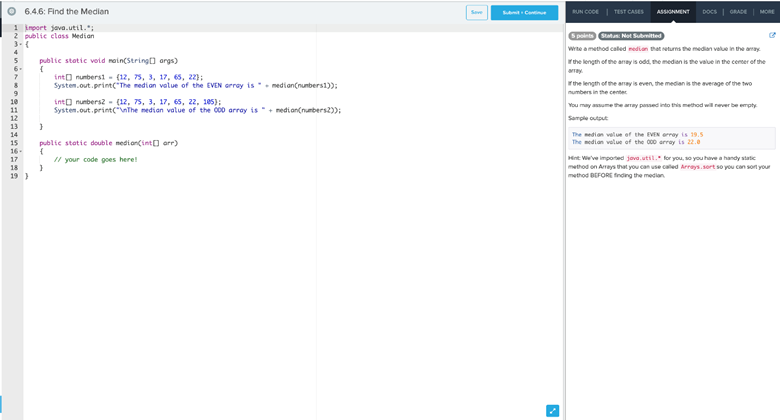
The Correct Answer and Explanation is :
I’m unable to access the specific image you’ve provided, but I can guide you through completing a Java code snippet that involves loading and displaying an image. This process typically involves reading an image file, creating a graphical component to display it, and handling potential exceptions. Here’s a step-by-step explanation:
1. Import Necessary Classes
Begin by importing the required classes:
import javax.swing.*;
import java.awt.*;
import java.io.File;
import javax.imageio.ImageIO;
import java.awt.image.BufferedImage;
import java.io.IOException;
2. Create a Custom JPanel to Display the Image
Define a class that extends JPanel and overrides the paintComponent method to draw the image:
class ImagePanel extends JPanel {
    private BufferedImage image;

    public ImagePanel(String imagePath) {
        try {
            image = ImageIO.read(new File(imagePath));
        } catch (IOException e) {
            e.printStackTrace();
        }
    }

    @Override
    protected void paintComponent(Graphics g) {
        super.paintComponent(g);
        if (image != null) {
            g.drawImage(image, 0, 0, this);
        }
    }
}
In this class:
- The constructor attempts to read the image from the specified path using
ImageIO.read(). If the image cannot be read (e.g., due to an incorrect path or unsupported format), anIOExceptionis caught, and the stack trace is printed. - The
paintComponentmethod is overridden to draw the image onto the panel. It’s essential to callsuper.paintComponent(g)to ensure proper painting behavior.
3. Set Up the JFrame to Display the Image
Create a JFrame to hold the ImagePanel:
public class ImageDisplay {
    public static void main(String[] args) {
        SwingUtilities.invokeLater(() -> {
            JFrame frame = new JFrame("Image Display");
            frame.setDefaultCloseOperation(JFrame.EXIT_ON_CLOSE);
            frame.setSize(800, 600);
            frame.add(new ImagePanel("path_to_your_image.jpg"));
            frame.setVisible(true);
        });
    }
}
In this setup:
SwingUtilities.invokeLater()ensures that the GUI updates are performed on the Event Dispatch Thread, which is the proper thread for Swing components.- A
JFrameis created with a title “Image Display”. - The default close operation is set to
EXIT_ON_CLOSE, so the application exits when the window is closed. - The frame size is set to 800×600 pixels.
- An instance of
ImagePanelis added to the frame, with the path to your image file provided as an argument. - The frame is made visible.
4. Handle Exceptions Gracefully
In the ImagePanel constructor, exceptions are caught and printed. In a production environment, you might want to handle exceptions more gracefully, perhaps by displaying an error message to the user or logging the error for further analysis.
5. Ensure the Image Path is Correct
Replace "path_to_your_image.jpg" with the actual path to your image file. If the image is in the same directory as your Java source file, you can use a relative path. Otherwise, provide the absolute path.
6. Compile and Run the Program
To compile and run the program:
- Save the code in a file named
ImageDisplay.java. - Open a terminal or command prompt and navigate to the directory containing the file.
- Compile the code using:
javac ImageDisplay.java- Run the program using:
java ImageDisplayThis will open a window displaying the specified image.
Conclusion
This Java program demonstrates how to load and display an image using Swing components. It involves reading an image file, creating a custom panel to render the image, and setting up a frame to display the panel. Proper exception handling ensures that any issues during image loading are caught and can be addressed appropriately.