The Correct Answer and Explanation is:
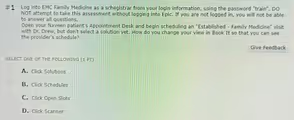
The correct answer is B. Click Schedules.
In the EPIC electronic health record system, the scheduling workflow, often called “Book It,” is designed to streamline the process of making appointments. When a scheduler initiates the process of booking a visit, the system typically presents a filtered, simplified view first. This initial view is usually either “Solutions” or “Open Slots.”
The “Solutions” view offers a list of pre-configured, ideal appointment times and types that match the reason for the visit. This is the fastest path for standard appointments. The “Open Slots” view is similar, showing only the available appointment times and hiding any times that are already booked or blocked. While useful for quickly finding an empty spot, this view lacks the full context of the provider’s day.
The question asks how to see the provider’s complete schedule, not just the available slots. To do this, the scheduler must switch to a more comprehensive view. The “Schedules” button or tab serves this exact purpose. Clicking “Schedules” changes the display from the filtered “Open Slots” or “Solutions” view to the provider’s full calendar grid. This detailed view shows everything: currently booked appointments, patient names (with appropriate security), blocked time for administrative tasks or meetings, and lunch breaks. This comprehensive overview is essential for schedulers to understand the flow of the provider’s day, find non standard appointment lengths, or negotiate a specific time with a patient.
The other options are incorrect. “Click Solutions” would keep the user in the filtered view of recommended appointment times, which is the opposite of the goal. “Click Open Slots” also provides a filtered view, showing only availability and hiding the context of the full schedule. “Click Scanner” is entirely unrelated to appointment scheduling; this function is used for digitizing and uploading documents into the patient’s chart. Therefore, to see the provider’s entire schedule, the correct action is to click “Schedules.”