The Correct Answer and Explanation is:
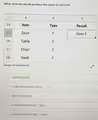
Based on the image provided, the correct formula to produce the output “Door P” in cell C25 is:
=A25&” “&B25
Explanation
This task requires combining, or concatenating, the text from two different cells into one. The goal is to take the value from cell A25 (“Door”), add a space, and then add the value from cell B25 (“P”). Excel provides several ways to do this, but the formula using the ampersand is the most common and direct method.
Let’s break down the correct formula:
- =: The equals sign is the standard way to begin any formula in Excel, signaling that the cell should calculate a result rather than display static text.
- A25: This is a cell reference. The formula pulls the value contained within cell A25, which is the word “Door”.
- &: The ampersand is Excel’s concatenation operator. Its function is to join two or more text strings together.
- ” “: This part of the formula is a literal text string. The double quotes indicate that the character between them, in this case a single space, should be treated as text. Without this, the result would be “DoorP” instead of “Door P”.
- &: Another ampersand is used to join the preceding result with the next piece of text.
- B25: This is another cell reference, which pulls the value “P” from cell B25.
When executed, the formula joins “Door”, a space, and “P” to produce the final text “Door P” in cell C25.
While other functions like CONCAT(A25, ” “, B25) or TEXTJOIN(” “, TRUE, A25, B25) would also produce the correct result, the ampersand operator is a fundamental and efficient way to perform simple text concatenation. The formula =A25+B25 is incorrect because the plus sign is a mathematical operator and would result in a #VALUE! error when trying to add text strings.