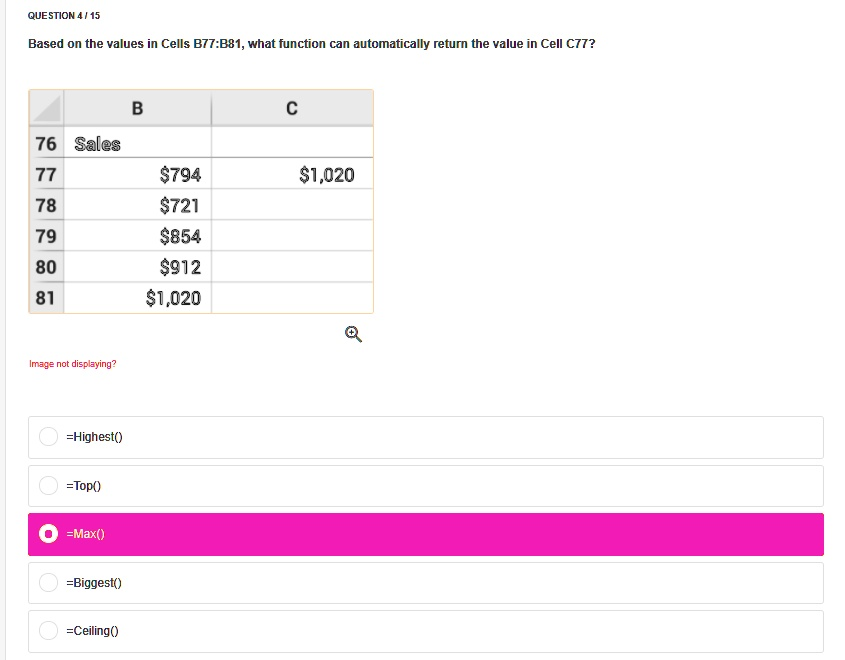
QUESTION 4/15 Based on the values in Cells B77:B81, what function can automatically return the value in Cell C77? B C 76 Sales 77 7941,020 78 72179854 80 912811,020 Image not displaying? =Highest() =Top() =Max() =Biggest() =Ceiling()
The Correct Answer and Explanation is:
The correct answer is: =MAX()
Explanation:
In Excel, the function that returns the largest numeric value in a range of cells is the =MAX() function. Based on the values provided in cells B77 to B81, we can observe the following:
- B77: $794
- B78: $721
- B79: $854
- B80: $912
- B81: $1,020
Among these, the maximum value is $1,020, which appears in cell B81 and is also shown in cell C77. To return the value in C77 (which is $1,020) automatically using a function based on the values in B77:B81, the correct function to use is:
=MAX(B77:B81)
Why Other Options Are Incorrect:
- =Highest(): This is not a valid Excel function. Excel does not recognize
=Highest()as a formula. - =Top(): This is also not a valid Excel function. While “Top” might be used in natural language or in pivot tables conceptually, it is not an actual Excel function.
- =Biggest(): This is another invalid function. Excel doesn’t support this formula syntax.
- =Ceiling(): While this is a valid Excel function, it is used to round numbers up to the nearest multiple of a specified significance, not to find the largest number in a range. For example,
=CEILING(721,100)would return 800, not the maximum value in the list.
Summary:
The function =MAX() is designed specifically for this purpose: to find the maximum (or largest) value in a list or range of numbers. In this case, it would correctly return $1,020, matching the value shown in Cell C77.